 AudioPaper
AudioPaper
Your desktop, set to the music you’re playing.
When the song changes, the wallpaper changes to its album cover. While the song plays, fan art and photos of the artist fade in and out, each one credited with a link to where it came from.
Free · MIT licence · macOS 26 or later · Apple Music or Spotify · no account, no telemetry

What it looks like
.jpg)
.jpg)
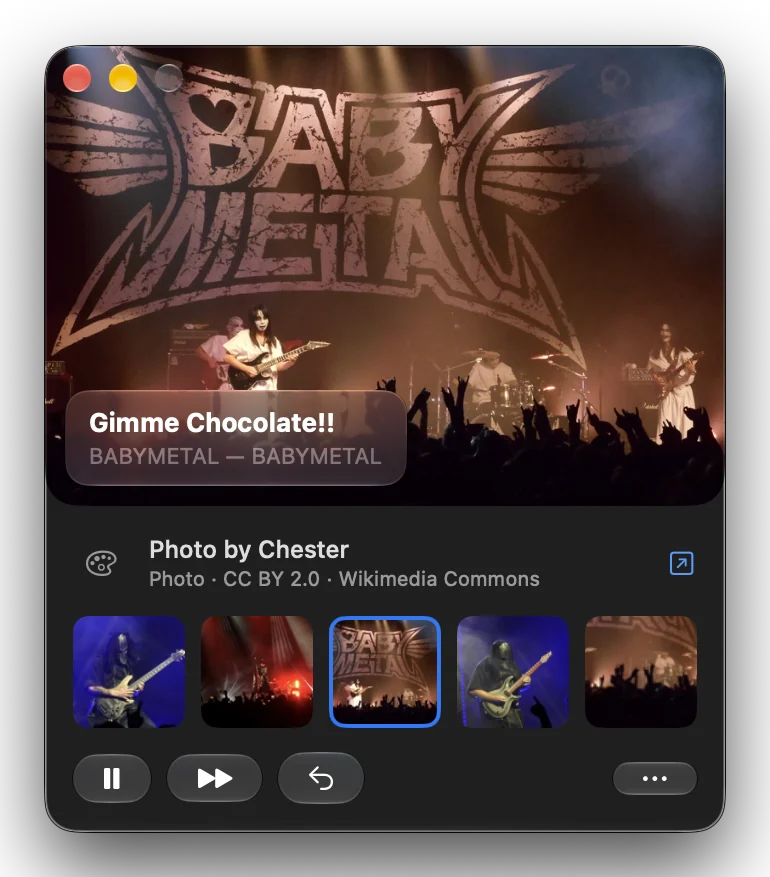
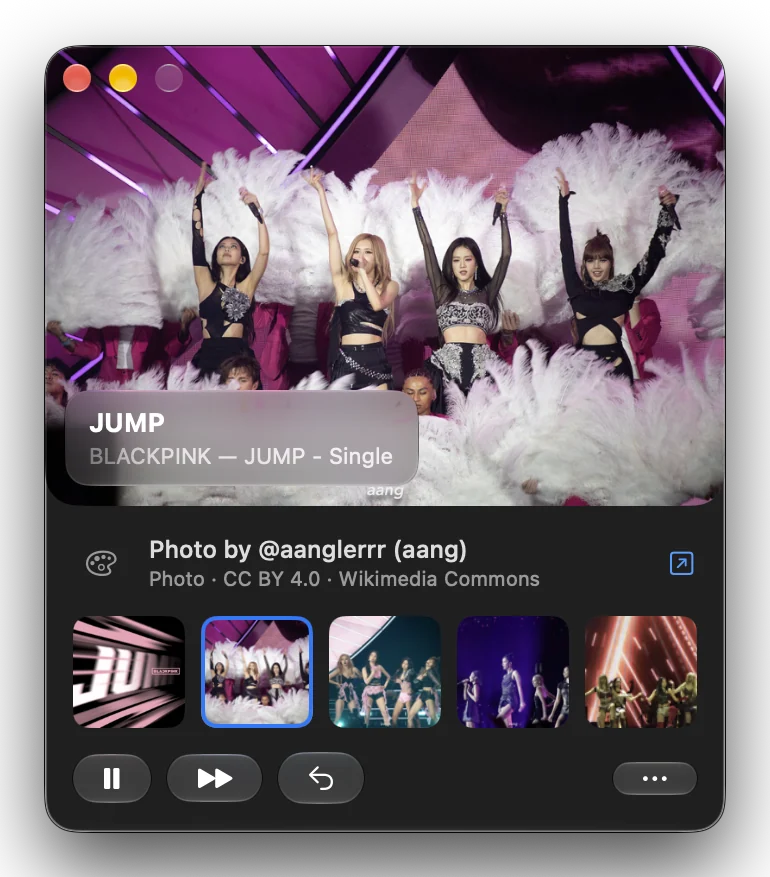
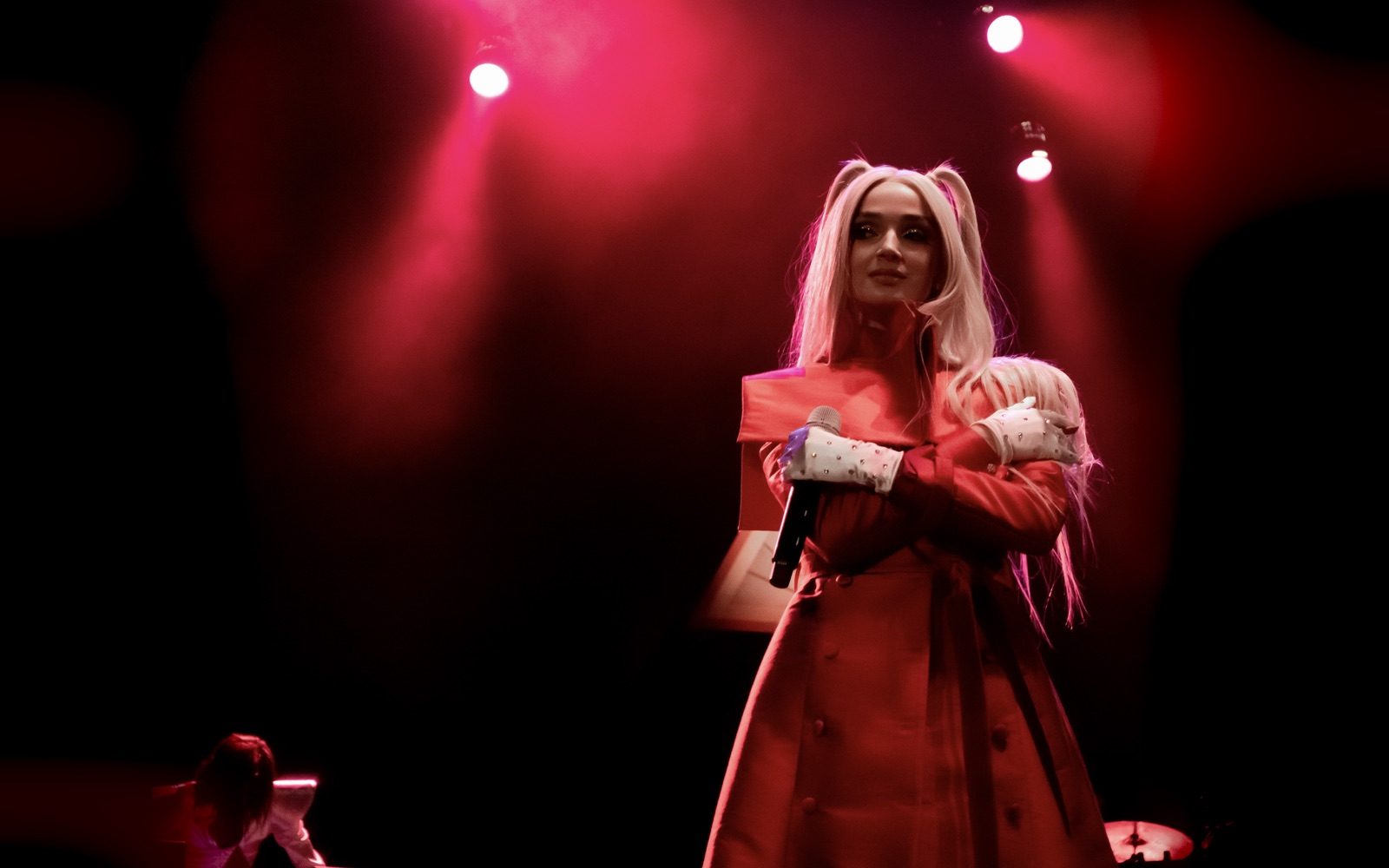
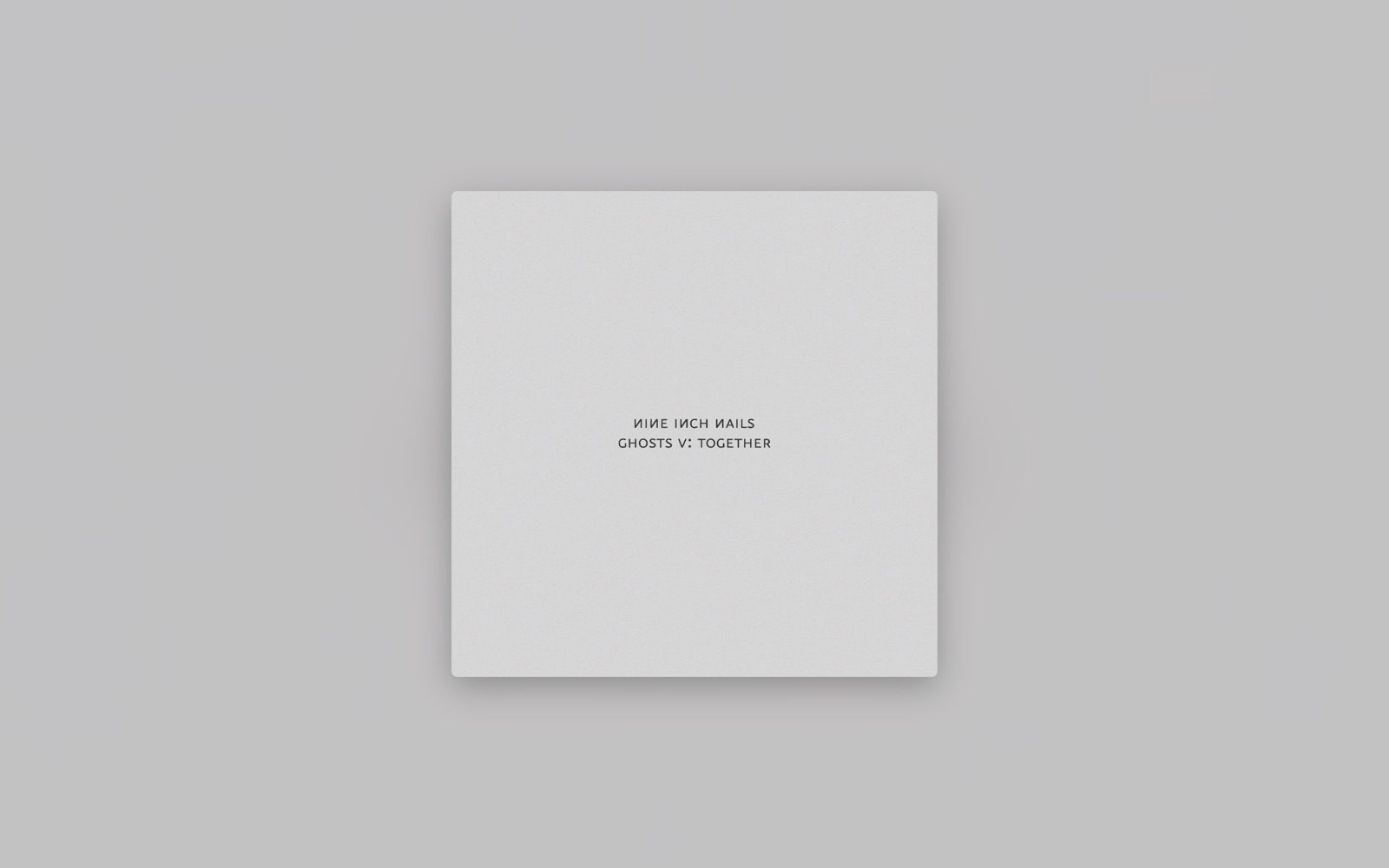
The Mini Player: the image on the desktop, who made it and under what licence, and everything else in rotation. Every picture in these two screenshots is an album cover or a freely licensed photo; who took each one is on the Credits page. The fan art AudioPaper also shows is other people’s work, so it isn’t pictured on this site.
How it works
-
It hears the song change
Apple Music and Spotify announce every track change to the system. AudioPaper listens for that; it doesn’t poll, and it never controls playback. Spotify’s ads are ignored. During a podcast your own wallpaper stays up, or the episode’s cover if you’d rather.
-
It puts up the cover
The album cover is looked up online, up to 3000 × 3000, and centred over a blurred wash of its own colours.
-
It fades in art of the artist
About 10 seconds later, fan art and photos from fanart.tv, TheAudioDB, Wikimedia Commons and others. A new one every 45 seconds, or whatever you choose.
-
It says where each one came from
Every image carries a credit and a link: the person who made it where known, and always the page it came from.
Before anything reaches your screen, your Mac checks it with Apple’s Vision framework: images with big text, screenshots, ads and product photos are dropped, and so are duplicates. The details, with every number, are in the reference.
What leaves your Mac
To find art, AudioPaper has to ask for it. So the names of the artist, album and song you play are sent to the lookup services, along with your IP address, as with any request online.
Nothing else is: not your library, your play counts, your playlists, your settings or the images you’ve seen. There is no AudioPaper server, account or analytics. Each song is searched once; replaying it sends nothing, unless you clear the cache.
Whose art it is
Fan art belongs to the people who made it, and photos to the people who took them. AudioPaper shows them on your own desktop with their credit, keeps a copy only in its local cache, and never uploads, republishes or redistributes them.
Most images come from sites built to share them with apps like this one (fanart.tv, TheAudioDB, Wikimedia Commons). If you add a Brave Search key, AudioPaper can also find images on ordinary websites when those sites have too little. Those websites didn’t ask to be included. That source is off unless you add a key, and you can switch it off again at any time.
Because all of it is found automatically, an image can be mislabelled, show the wrong person, or be something you didn’t expect. Next Image skips it.
What it asks of you
- A Mac on macOS 26 and Apple Music or Spotify (a free account works).
- One permission, asked once per player: to read what’s already playing when AudioPaper starts. If you say no, it still works from the next song on.
- Disk space for the art it downloads: up to 500 MB by default, which you can change or clear.
- Nothing to sign up for. Art from fanart.tv, TheAudioDB and Wikimedia Commons works without a key of your own. A Brave Search key finds more for artists they don’t cover, if you want it.
Leaving is easy
Restore Original Wallpaper, in the menu, puts your own wallpaper back. Quit, drag AudioPaper to the Trash, and it’s gone; the Help page lists the two folders it leaves behind, if you want those gone too.
A desktop that changes with every song isn’t for everyone. You can also pause changes, keep only the album cover, or slow the rotation down to five minutes.
Who made this, and what’s in it for them
AudioPaper is written by Michael Sitarzewski, working with an AI coding assistant, Claude; every commit in the history says so. The code is public and MIT-licensed: anyone can read it, change it, or build their own copy.
The app earns nothing: no price, no ads, no data sold or collected. If you want to support the work, there is a GitHub Sponsors page; AudioPaper works the same whether you use it or not. The author gains something anyway: his name is on it.
Check it yourself
- Watch its connections with macOS’s own network privacy report, or Little Snitch or LuLu, and compare them with the list.
- From a copy of the source, run the art search for any song with
swift run apctl fanart "Artist" "Song"and see every image it considered, and why each was kept or dropped. - Read the source: each service it contacts lives in one file.
If you want your desktop to follow your music, it does that, and this page has told you what it costs. If you’d rather your desktop stay put, that’s a fine answer too.