 AudioPaper
Help
Everything AudioPaper does, where to find it, and what to try when it doesn’t do what you expected. You don’t need to read it in order.
Install
- Download
AudioPaper-0.1.3.dmg(or the newest version) from the latest release. It is signed with a Developer ID and notarized by Apple, so it opens without warnings. - Open it and drag AudioPaper into Applications. It must be in Applications for its widgets to show up.
- Open AudioPaper from Applications. A small display-and-note icon appears in the menu bar; there’s no window to start with.
You need macOS 26 or later, and the Music app or Spotify (a free Spotify account works). If you’d rather build it yourself, the README has the steps.
Updating: on its second launch AudioPaper asks whether to check for updates automatically (about once a day). You can change that in Settings → About, which can also download and install updates automatically, and shows when it last checked. Either way, Check for Updates… in its menu checks now, and installs the update when you say so. Your settings, keys and downloaded art are kept.
The first launch
If music is already playing, macOS asks: “AudioPaper” wants access to control “Music” (or “Spotify”), with AudioPaper’s reason: AudioPaper asks your music player what is playing when it starts, so your wallpaper matches right away, and asks Spotify for the cover of what it’s playing. Each player is asked about once.
- Allow, and the wallpaper changes straight away.
- Don’t Allow, and it changes when the next song starts instead. Track changes don’t need this permission. You can change your answer in System Settings → Privacy & Security → Automation.
AudioPaper uses this only to read the current track (and, as a last resort, the cover art the player already has; for Spotify podcasts, the episode’s cover). It never plays, pauses or skips anything.
Spotify, podcasts and ads
AudioPaper follows Spotify the same way it follows Music, on free and paid accounts alike. With both open, the one that changed most recently wins. You can switch either off in Settings → Sources.
- Podcasts get no fan art: a show has no artist to find photos of. Settings → General → During podcasts chooses what the desktop shows: My wallpaper (the default) puts your own wallpaper back until music returns, and Podcast cover art shows the episode’s cover from Spotify. Either way, the Mini Player and widgets show the episode’s cover.
- The Mini Player and the menu show which app is playing, with its icon, and a note or a microphone for music or a podcast.
- Ads are ignored. Spotify doesn’t announce them, so the last song’s art simply stays up until the next song.
Your own wallpaper is remembered the first time AudioPaper changes it, so Restore Original Wallpaper can put it back later.
Getting more art
Out of the box, AudioPaper finds covers for nearly everything, and fan art and photos from fanart.tv, TheAudioDB and Wikimedia Commons. Well-known artists usually have plenty; newer or smaller artists may have one image or none. These optional keys find more. Add them in Settings → Accounts; they’re saved in your Keychain as you type.
| Service | What it adds | How to get a key |
|---|---|---|
| fanart.tv | Fan-made artist backgrounds at 1920 × 1080 and 4K. Often the best source for well-known artists. | Nothing needed: the downloaded app includes AudioPaper’s project key. Optionally, make a free account at fanart.tv and paste your Personal API key; new images then reach you after 2 days instead of 7. (If you built AudioPaper yourself, add a Project API key too.) |
| Brave Search | Images from the wider web, used only when the other sources find fewer than three usable images for a song. | Sign up at the Brave Search API dashboard. The free plan allowed 2,000 searches a month as of September 2026; AudioPaper uses at most three per song, and only for songs that need it. |
| DeviantArt | Fan art, with links to each artist’s DeviantArt profile. This source hasn’t yet been tested against a live DeviantArt account. | Register an application and paste its Client ID and Client secret. |
| TheAudioDB | Works without a key. A personal key only matters if you’re a supporter of theirs. | About TheAudioDB’s API |
Each song is searched once, when it first plays. Art found for an artist is kept in a pool of up to 24 images, so their other songs have something to show straight away.
The menu bar menu
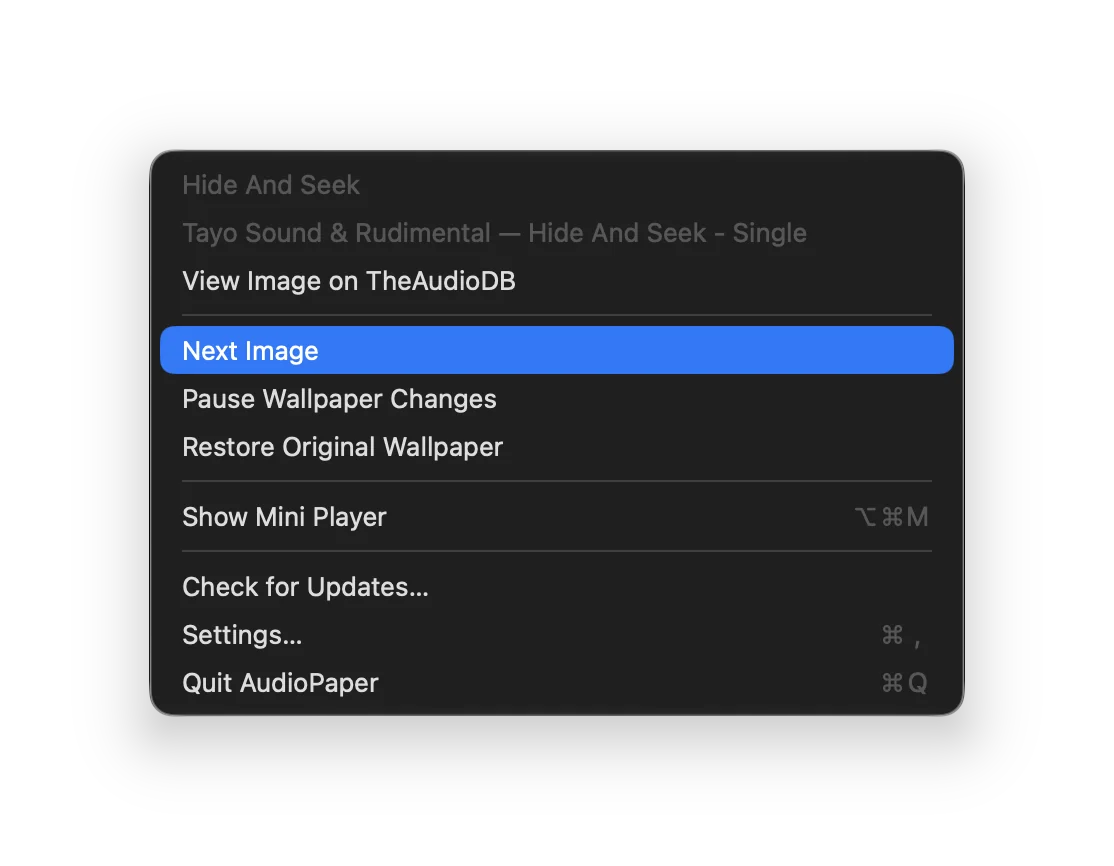
Click the icon in the menu bar. From the top:
- The song, and the artist and album.
- The credit for the image on screen. Choose it to open the artist’s profile, when there is one. View Image on … (or View Album on …) opens the page the image came from.
- Next Image, Pause Wallpaper Changes and Restore Original Wallpaper.
- Show Mini Player, Check for Updates…, Settings… and Quit AudioPaper.
The icon shows a pause mark while wallpaper changes are paused.
The Mini Player
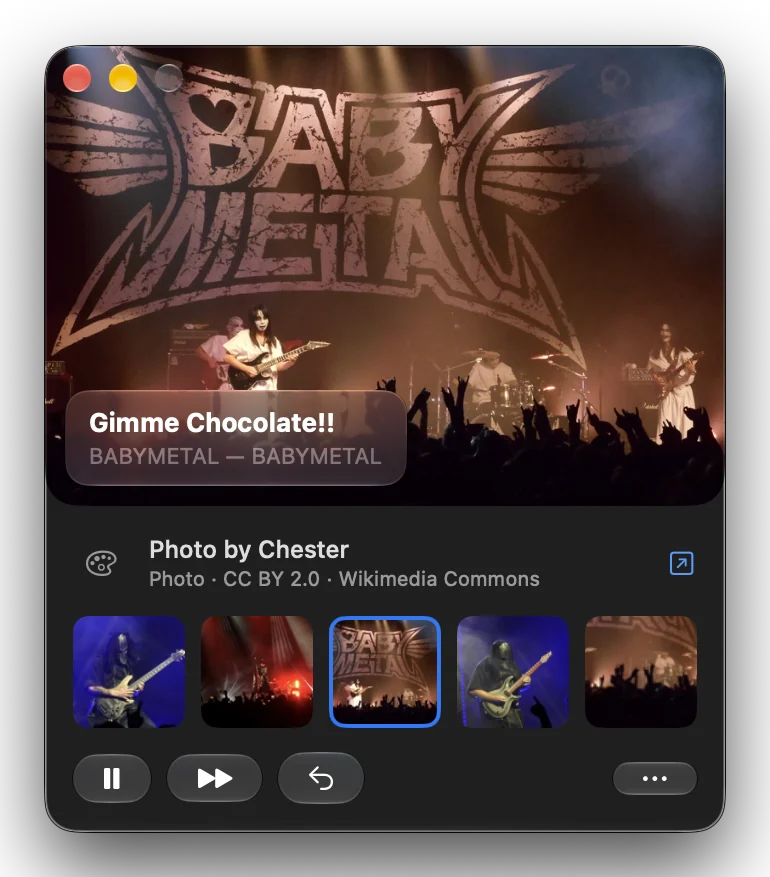
A small window, like Music’s MiniPlayer: the song, a strip of every image in rotation (the one on the desktop is outlined), that image’s credit, and buttons for Next Image, Pause and Restore Original Wallpaper. Click an image in the strip to show it now.
- Open it from the menu (⌥⌘M), by clicking a widget, or by clicking AudioPaper’s Dock icon.
- Move it by dragging anywhere on its background.
- The … button has Show Artwork, which adds a large copy of the image on the desktop (handy when windows cover it; off by default), Float on Top and Show on All Desktops. The same options are in the Window menu.
- It remembers where you left it, and whether it was open when you quit.
Widgets
Right-click the desktop, choose Edit Widgets, and search for AudioPaper.
- Now Playing (small, medium, large): the track, the image on screen and its credit. The medium and large sizes have working Pause and Next Image buttons.
- Artwork (all sizes): just the image on screen, with its credit.
Clicking a widget opens the Mini Player. Like all macOS widgets, they turn grey while another app’s window is in front and the widget style is set to Automatic; clicking the desktop brings the colour back. You can change this in System Settings → Desktop & Dock → Widget style.
The Dock icon
AudioPaper stays out of the Dock unless it needs to be there: while the Mini Player is open, or when you’ve turned off Show in menu bar, so there is always a way back in. Clicking the Dock icon opens the Mini Player; right-clicking it offers Next Image, Pause and Restore Original Wallpaper.
If you hid the menu bar icon and closed the Mini Player, open AudioPaper from Applications again to bring the Mini Player back.
Pausing, slowing down, restoring
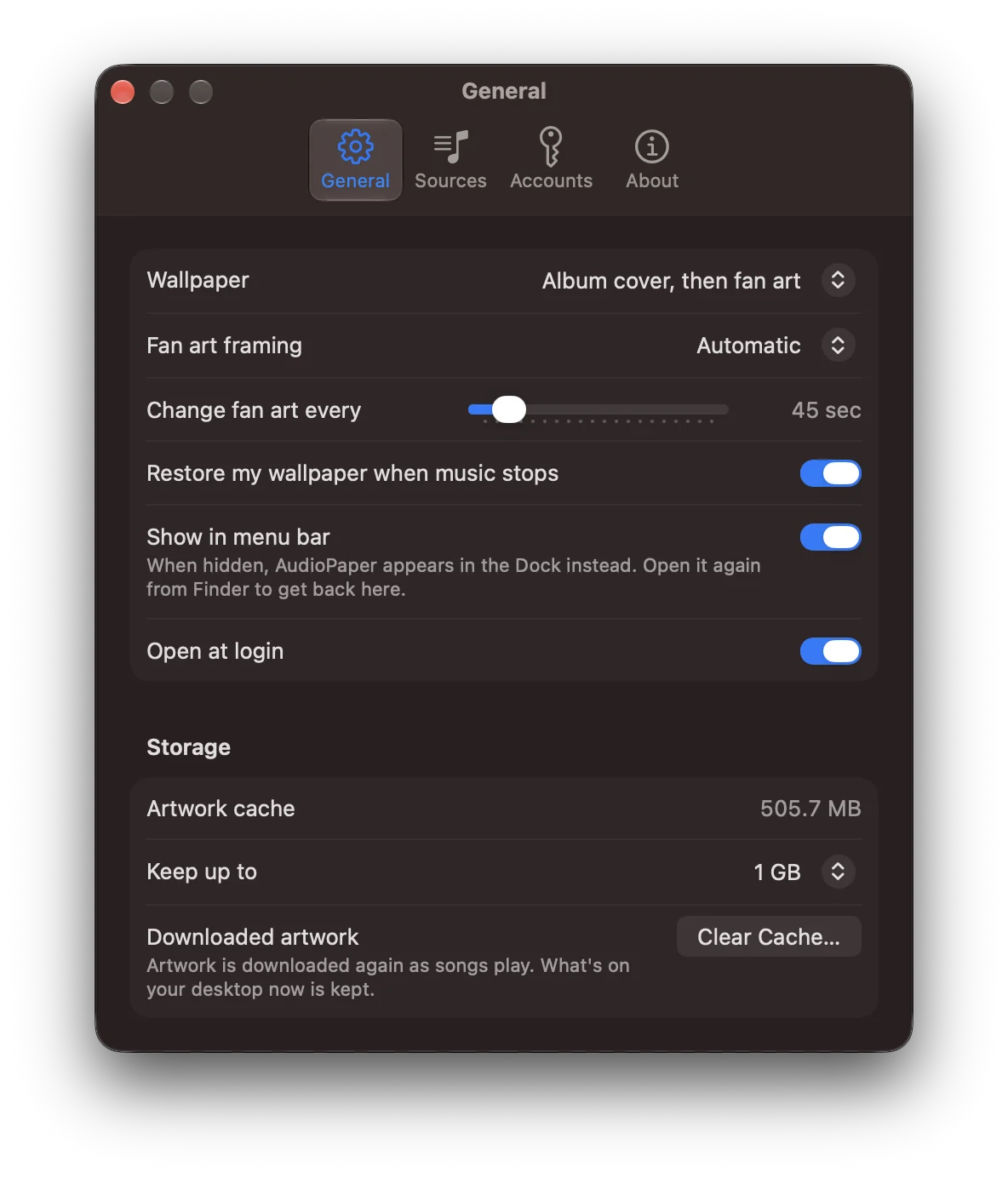
- Pause Wallpaper Changes keeps the current image until you resume, whatever you play.
- Settings → General → Change fan art every sets the rotation, from 15 seconds to 5 minutes.
- Settings → General → Wallpaper → Album cover shows only the cover: no fan art, and no fan-art lookups.
- Restore my wallpaper when music stops puts your own wallpaper back 30 seconds after playback stops.
- Restore Original Wallpaper puts it back now.
The wallpaper AudioPaper sets is a real wallpaper, so it stays if you quit, and shows on every desktop and display.
Storage
Downloaded art is kept so that replays cost nothing. Settings → General → Storage shows how much is in use, sets the limit (250 MB to 2 GB, 500 MB by default), and has Clear Cache…, which deletes it all except the images on screen. When the limit is reached, the images used least recently go first.
Siri, Shortcuts and scripts
Ask Siri “What’s on my desktop in AudioPaper?” and it answers with the credit: who made the image, its licence, where it came from, and the song it’s for. Siri also knows “Open the AudioPaper image source”, “Next image in AudioPaper”, “Pause AudioPaper” and “Resume AudioPaper”. Apple asks apps to include their name in each phrase, so “in AudioPaper” is part of it.
The same actions are in the Shortcuts app, under AudioPaper, and in Spotlight. Scripts can use AudioPaper too; the Reference has the AppleScript commands. Whatever the app, macOS asks you before it may send AudioPaper commands, and none of them controls your music.
When something doesn’t work
The wallpaper doesn’t change
- AudioPaper follows the Music app and Spotify. Other players aren’t supported yet, and a player switched off in Settings → Sources is ignored.
- Check the menu bar icon: if it shows a pause mark, choose Resume Wallpaper Changes.
- The first song after launch needs the Automation permission (see The first launch). The next song works without it.
Only the album cover, no fan art
- Check Settings → General → Wallpaper is set to show fan art, and that sources are switched on in Settings → Sources.
- Some artists have no art in the sources you have. Adding a Brave Search key finds more.
- When nothing is found for a song, AudioPaper waits a week before searching for it again, so it doesn’t ask the services over and over.
The art shows the wrong artist
AudioPaper identifies artists through MusicBrainz, using the song as well as the name, so two artists with the same name aren’t mixed up. It can still get it wrong, especially for new releases MusicBrainz doesn’t know yet. Use View Image on … to see where the image came from, and please open an issue with the artist and song.
An image has text on it, or isn’t art
The filters catch most text, screenshots and product photos, but stylised band logos can get past them. Next Image moves on; an issue with the image’s page helps improve the filters.
An image is wrong, mislabelled or unexpected
AudioPaper finds images on the internet automatically. They come from other people and services, and may be mislabelled, show the wrong person, or be something you didn’t expect: the filters catch a lot, not everything. Next Image skips one; View Image on … shows where it came from. Reports help improve the matching: please open an issue with the artist, song and image page.
The widgets aren’t in the widget gallery
AudioPaper must be in your Applications folder, and must have been opened once from there.
The widgets look grey
That’s macOS dimming widgets while another window is in front; see Widgets.
Removing AudioPaper
- Choose Restore Original Wallpaper, so your own wallpaper is back.
- If you added keys, clear them in Settings → Accounts, which removes them from your Keychain.
- If you turned on Open at login, turn it off in Settings → General.
- Quit AudioPaper and drag it from Applications to the Trash.
- To remove its downloaded art and settings too, delete these two folders:
~/Library/Containers/com.audiopaper~/Library/Group Containers/7JQGQ7CRH8.com.audiopaper
VoiceOver and the keyboard
Everything in AudioPaper has a name VoiceOver reads out. In the Mini Player, the artwork tells you the song and what’s on your desktop, for example “Photo by Justin Higuchi, from Wikimedia Commons”, and each image in the strip says what it is and where it came from. The menu bar menu and Settings are standard macOS controls.
Keyboard shortcuts are listed on the Keyboard shortcuts page. If the rotating wallpaper is distracting, Pause Wallpaper Changes stops it, and with Reduce Motion on, the Mini Player’s image strip jumps instead of scrolling. More detail is in the Reference.
If something is hard to use with VoiceOver or the keyboard, please tell us.
Asking for help
Questions and bug reports go to GitHub issues. Security or privacy problems go by email instead, as described in SECURITY.md.