 Glass Image Tools

Glass Image Tools
Crop. Mark up. Share. On Mac and Apple Vision Pro.
Open from Photos or Files, drop an image into the window, or paste an image or direct HTTPS image link with a tap or ⌘V. Crop to the part that matters, add a note or an arrow, then copy it into a chat or share it. Your original is never changed.
Free · MIT license · macOS 26+ / visionOS 26+ · no account or tracking
Mac 1.0 (45) · Apple silicon and Intel · Developer ID signed and notarized. ZIP download · Checksums · Release notes. Vision Pro is available to build from source; there is no TestFlight link yet.
How it works
-
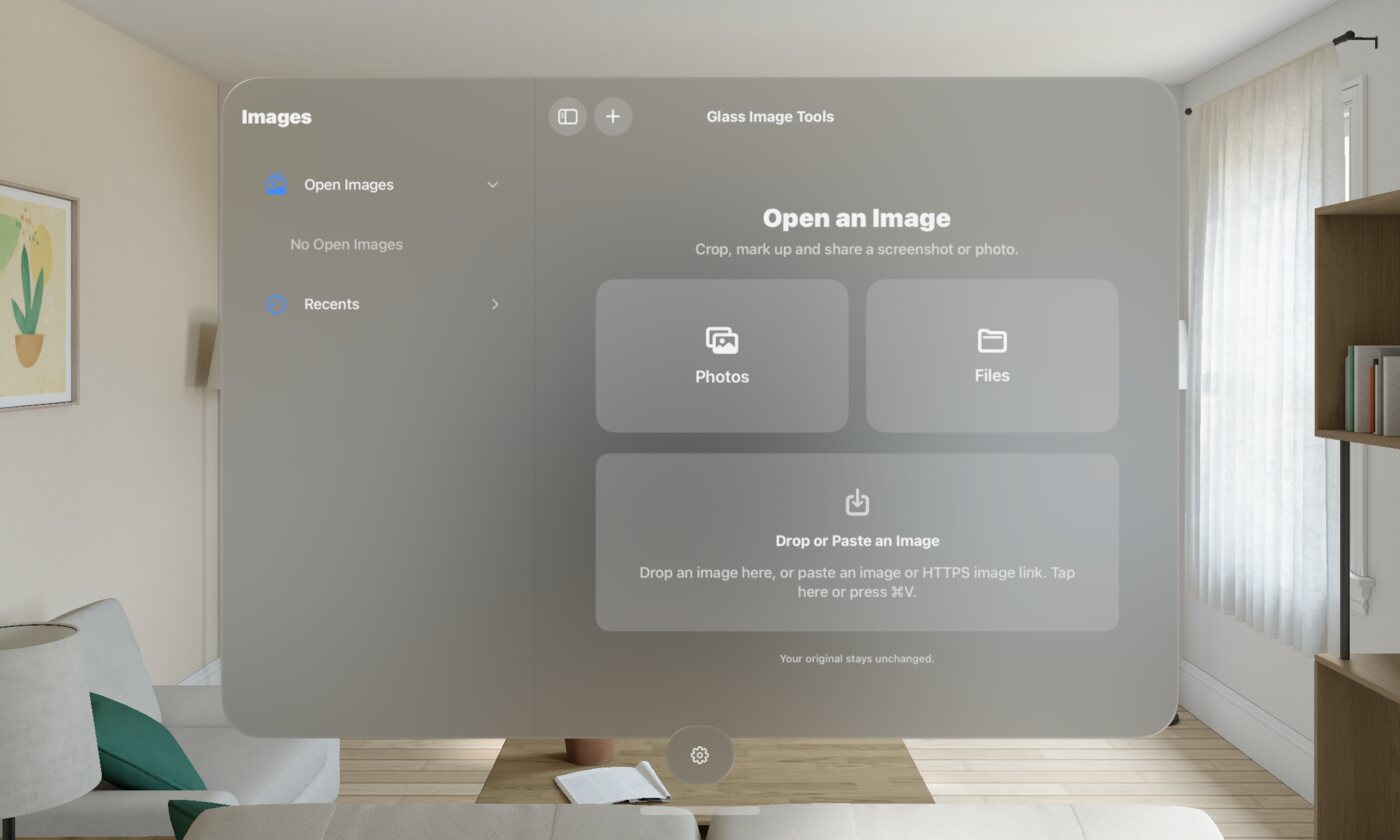
Open a screenshot
Take one the usual way. Choose Photos or Files, drop an image onto the empty window’s well, or tap it to paste (⌘V works there too). Apple’s pickers hand the app the image you choose.
-
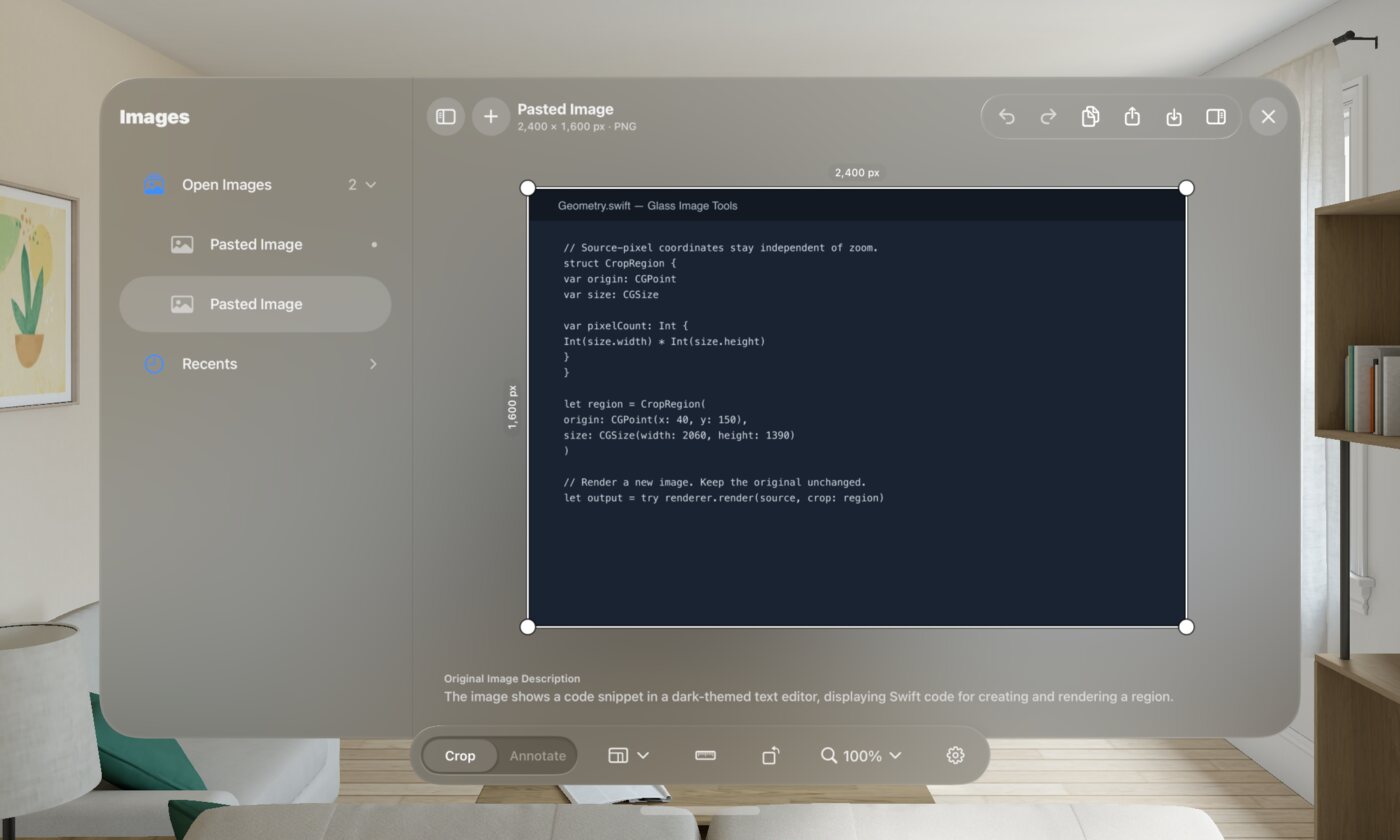
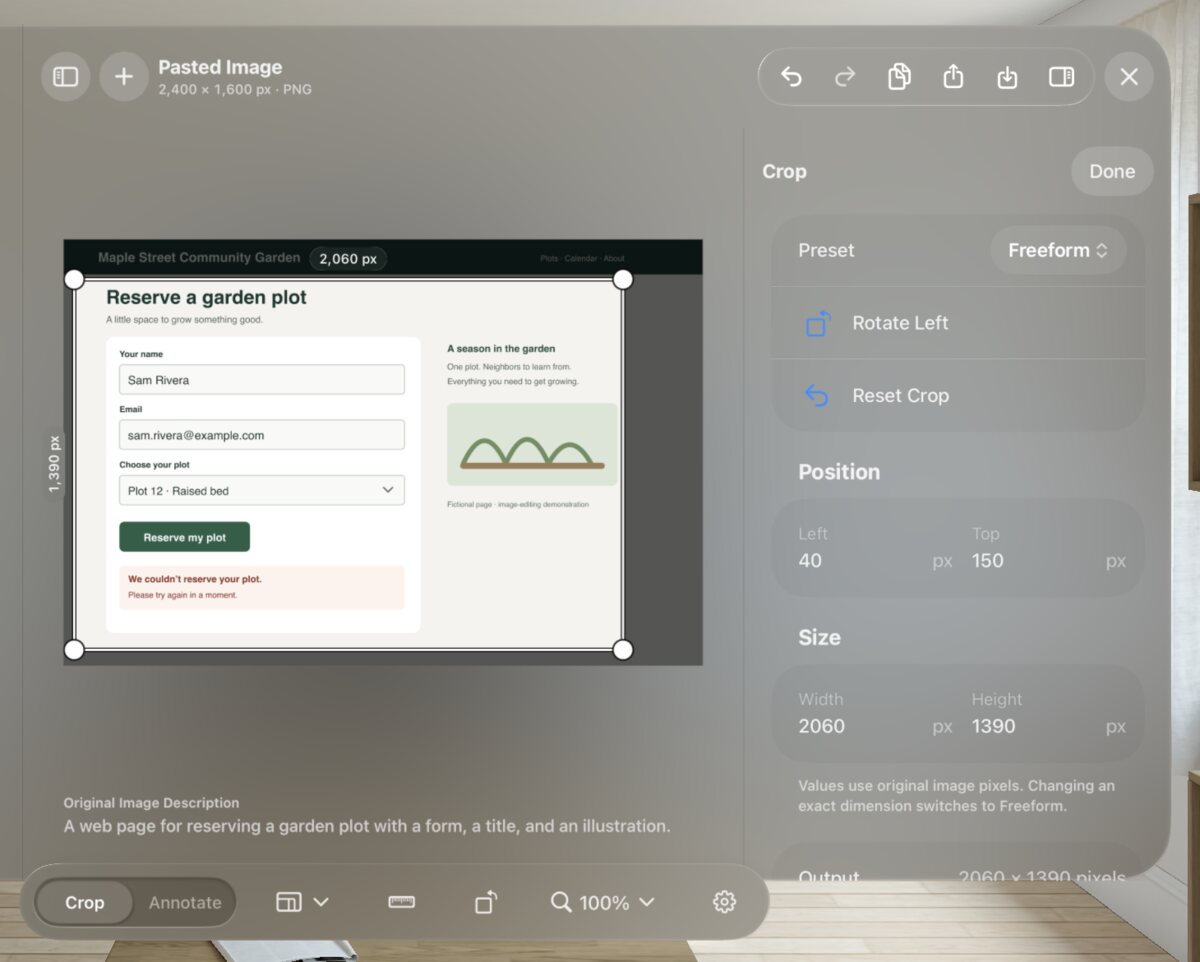
Crop it
Drag the corners, or type the exact size in pixels. Square, 16:9 and 4:3 presets, and Rotate. The crop comes from the full-resolution original.
-
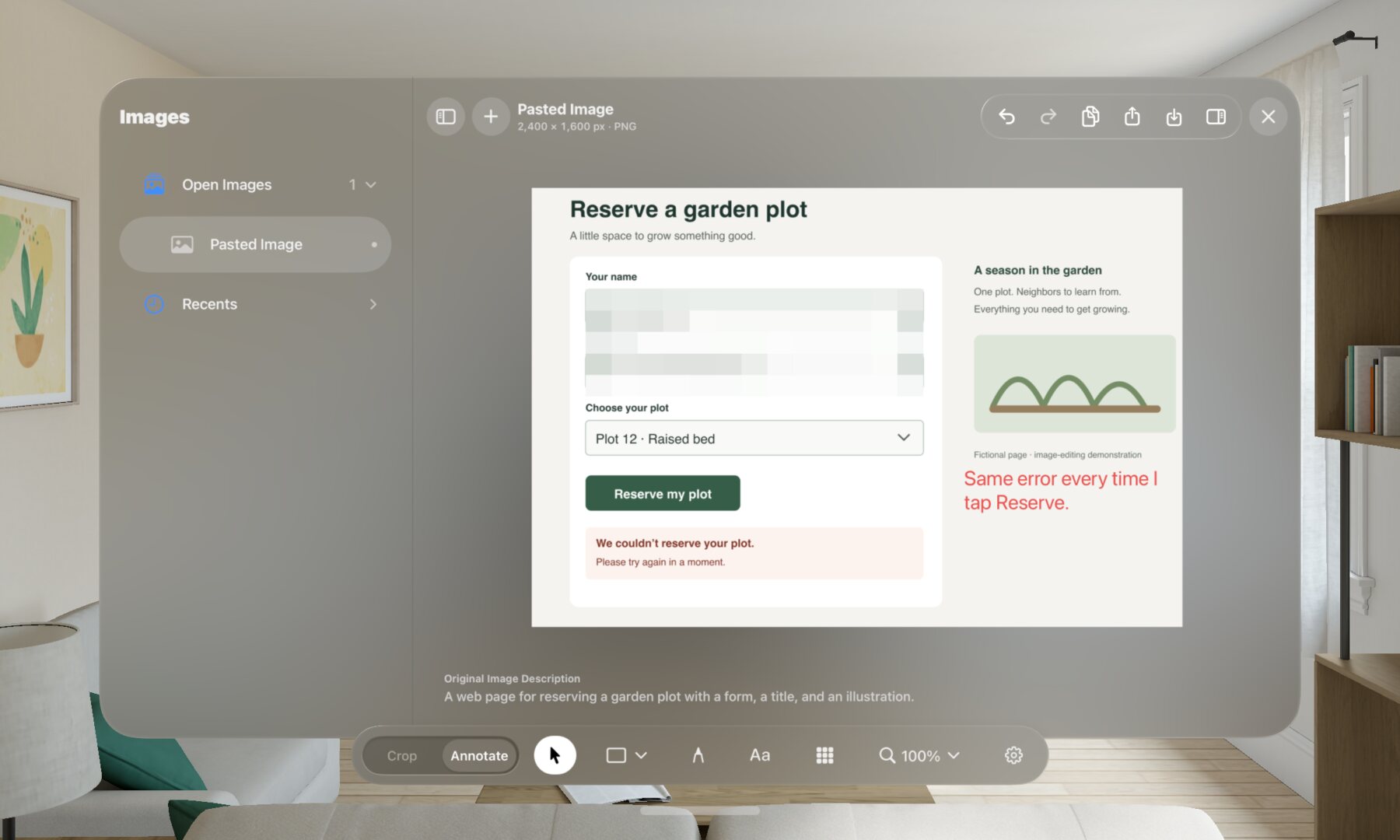
Mark it up
Boxes, ellipses, triangles, speech bubbles, lines, arrows, drawing, text and Pixelate. Everything stays editable until you close the image.
-
Copy or share it
Copy puts a PNG on the clipboard, ready to paste into a chat. Or Share, Save to Photos, or Save to Files. Each one makes a new image.
What it looks like
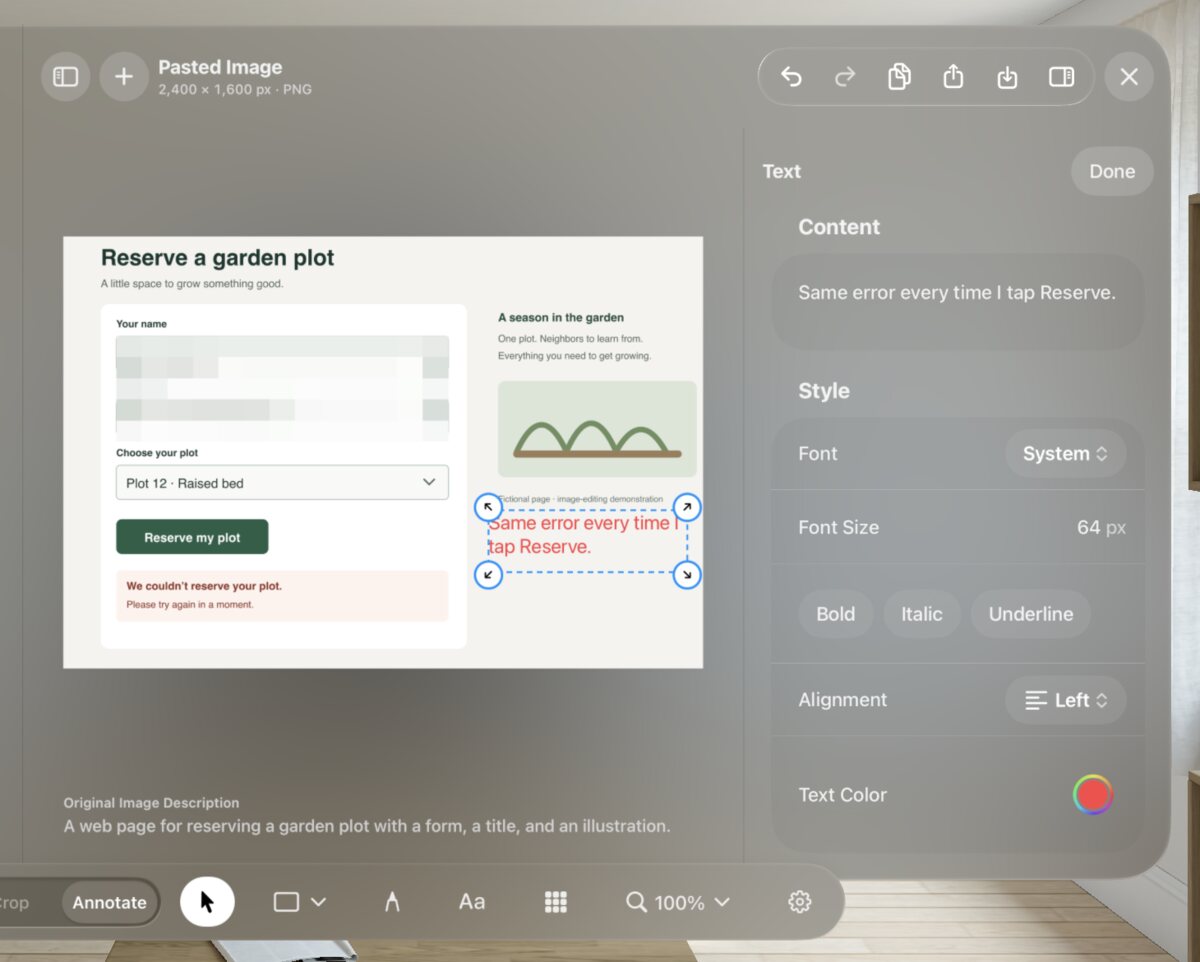
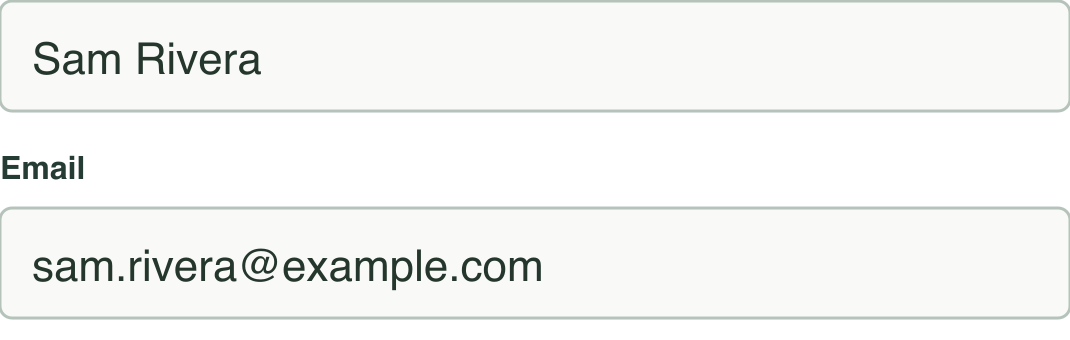

Pixelate rebuilds the area from large blocks in the new image, so the letters underneath aren’t in it. Each block is still an average of what was there, so big shapes can stay recognizable; larger blocks hide more. Your original keeps everything.
What leaves your device
Editing stays local. There is no backend, account, analytics or crash reporting. Pasting a direct HTTPS image link requests the image from its host, which sees your IP address and the requested URL. Requests use no cookies, saved credentials or persistent cache.
When you do send something, Apple’s features carry it. Copy uses the system clipboard, which Universal Clipboard can make pasteable on your other Apple devices. Share goes where you point it, and Save to Photos syncs if you use iCloud Photos. New images carry no location or camera details from the original.
The one-line description under the image comes from Apple Intelligence on your device (visionOS 27 or macOS 27, with a compatible model enabled). It isn’t saved and isn’t part of what you copy.
What it can’t do
It doesn’t take screenshots. Use macOS screenshot shortcuts on Mac. On Vision Pro, you take one the usual way, by pressing the top button and the Digital Crown together or asking Siri, and it goes to Photos. visionOS 27 has screen-capture tools that might one day let the app do this itself; that hasn’t been made to work, and nothing here depends on it.
It doesn’t keep your work. Edits live until you close the image. If you want to keep one, save a new copy; the app has no library of its own.
Pixelate isn’t a guarantee. It removes fine detail from the copy you send. It can’t promise that a large, simple shape is unrecognizable.
What it asks of you
- A Mac on macOS 26 or later for the download, or an Apple Vision Pro on visionOS 26 or later. The image description needs visionOS 27 and Apple Intelligence; everything else works without it.
- For the Vision Pro version, a Mac with Xcode to build and install it. Apple lets a free Apple Account install your own builds; those expire after seven days and need reinstalling. A paid developer membership lasts a year.
- One permission, only if you use it: adding new photos to Photos, asked the first time you save there. It can’t see your library.
- Nothing to sign up for.
Leaving is easy
On Mac, move the app from Applications to Trash. On Vision Pro, delete it from Home View like any other app. Vision Pro removes the app’s private data when you delete it. macOS may retain its sandbox container and preferences after you remove the app. Images you saved to Photos or Files stay where you put them.
And you may not need it at all. If you already move screenshots to a Mac or an iPhone to edit them, and that suits you, nothing here is better enough to change that.
Who made this, and what’s in it for them
Glass Image Tools is written by Michael Sitarzewski, working with AI coding assistants, which did much of the typing; the author directed, reviewed and tested the work. It started as a tool for the author’s own headset and is published in case it’s useful to you. The code is MIT-licensed: anyone can read it, change it, or build their own copy.
The app earns nothing: no price, no ads, no data collected. If you want to support the work, there is a GitHub Sponsors page; the app works the same whether you use it or not. The author gains something anyway: the name on it.
Check it yourself
- Read the image-link downloader: explicit HTTPS requests, no cookies or credentials, bounded private-file writes and cancellation. No images are uploaded.
- Copy or export a photo that has a location, and look at the new file’s details in Photos or Files: the location isn’t there.
- Run the image tests from a copy of the source with
swift test, including the ones that check exported files carry no metadata. - Read the image code: importing, source-pixel cropping, annotation rendering and Pixelate.
If you take screenshots in your Vision Pro and want to crop and send them without another device, this does that, and this page has told you what it costs. If you’d rather keep doing it another way, that’s a fine answer too.