 AutoPaper
AutoPaper
Tell your computer what you’d like to see.
Give it a few keywords, such as rain, ruins, peaceful, night, blue, and it keeps making new wallpapers from them. It writes a scene, has it painted by the AI service you choose with your own key, or by a model on your own computer, and puts it on your desktop. It remembers everything it has made, so you’re unlikely to see the same idea twice.
Version 0.1.2, for macOS, Windows and Linux.
For Linux there’s also a .flatpak file. How to install
Free · MIT licence · macOS 26, Windows 11, Linux · your own OpenAI or Google Gemini key, or a local model · no account, no telemetry
How it works
This page describes AutoPaper 0.1.0 on all three systems; where they differ, it says so.
-
You give it keywords
A handful of words, each marked Must, Maybe or Avoid, and how much Surprise you’d like. There’s no prompt to write.
-
It writes a scene
A language model turns them into a concept: a place, weather, light, a palette, a title. It writes four and keeps the one least like anything you’ve had and most like what you enjoy.
-
It’s painted by the service you choose
OpenAI, Google Gemini, or a model running on your own computer, with your own key. You see how far along it is, and how long is left.
-
It goes on your desktop
Sized for each display. Then it goes into your history, and into memory.
A new wallpaper comes every hour, every 3, 6 or 12 hours, every day (unless you choose otherwise) or every week, or only when you ask. New Wallpaper Now makes one straight away, and the schedule counts from there.
Keywords, not prompts
Each keyword is marked with one of three weights.
- Must: night
- In every wallpaper.
- Maybe: fog
- In some, not all. AutoPaper varies which Maybes it uses.
- Avoid: people
- Never. It isn’t even mentioned to the painter, because image models often take “no people” as a hint to add some.
Surprise sets how much freedom AutoPaper has, from faithful to wild. Near faithful, it follows your keywords closely and adds nothing of its own. Towards wild, it takes them more loosely and adds up to three ideas you didn’t ask for. Every wallpaper is asked for without text, letters, logos or watermarks, and with calm space where your desktop icons sit.
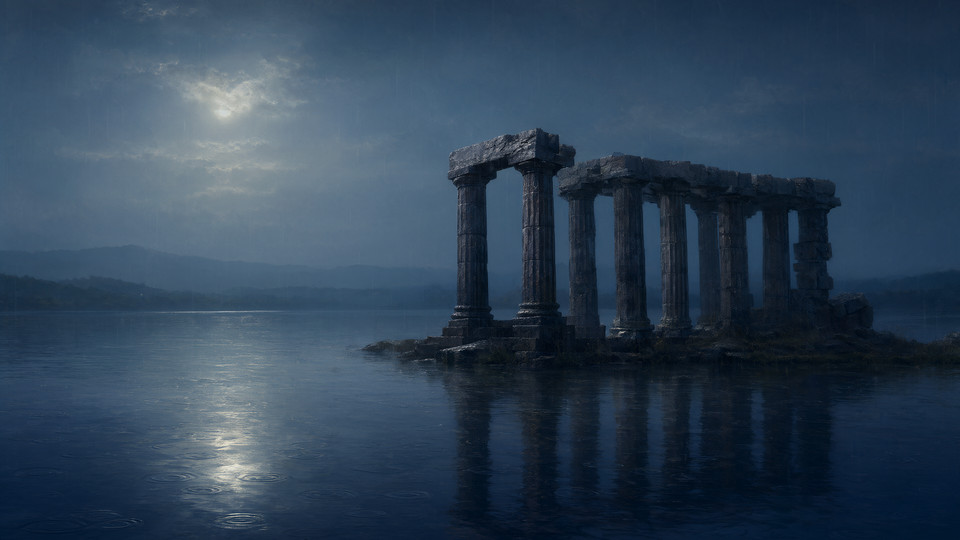
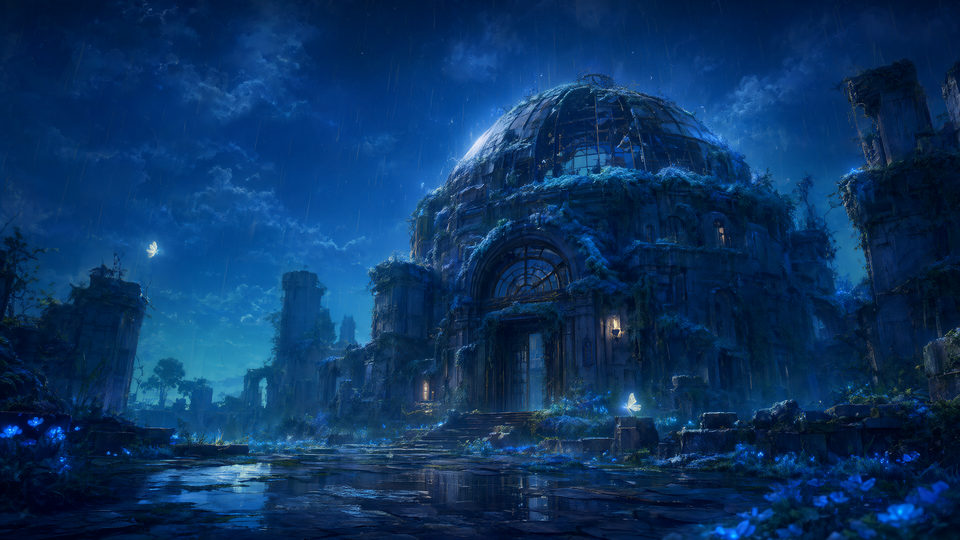
The same five keywords, faithful and wild
- Must: rain
- Must: ruins
- Must: peaceful
- Must: night
- Must: blue
Moods
A mood is a set of keywords with its own Surprise: Rainy beach, Night city, Winter forest, whatever you like. One mood is current, and new wallpapers come from it. Switch from the Mood submenu in the menu bar or notification-area menu (or the tray on KDE), or in the window. Switching never makes a wallpaper by itself, so it never costs anything.
Everything else is shared between moods: the schedule, the providers, the budget, memory, and what AutoPaper has learned about your taste. So a new mood doesn’t start from nothing, and an idea you’ve had in one mood won’t come back in another as if it were new. Echoes favour wallpapers from the current mood.
Each mood’s own history
Each mood shows the wallpapers made in it, and History can show one mood at a time. Delete a mood and its wallpapers stay in History.
On a Mac, Your Moods sums them up when no mood is selected: how many wallpapers each has made, how many you liked, when it last made one, its latest few, and a chart of the last 30 days, kept on your Mac only. Windows and Linux don’t have the summary yet.
Your own wallpaper, kept safe
On a Mac: over your wallpaper
AutoPaper shows its wallpapers over your own, in a click-through layer above the desktop picture and below your icons, on every display and Space. Your own wallpaper is never touched, even if it’s one of macOS’s moving Aerials. Quit AutoPaper, or choose Restore My Wallpaper, and yours is there exactly as it was.
If you’d like AutoPaper’s wallpapers in Mission Control and on the lock screen too, choose As my wallpaper in Settings → General. It then replaces your desktop picture, after noting each display’s own; macOS’s moving wallpapers may not come back exactly.
On Windows and Linux: as your wallpaper
Neither has a supported way to draw beneath the desktop icons, so AutoPaper sets the real wallpaper. First it keeps a copy of your own, for each monitor, and it puts it back when AutoPaper quits or you choose Restore my wallpaper. On Windows that includes a slideshow or Windows Spotlight, and AutoPaper sets the lock screen too, unless you turn that off. On Linux, putting yours back works on GNOME for now, not yet on KDE or in a Flatpak.
Pause
Pause New Wallpapers stops new ones and leaves the one you have; New Wallpaper Now still works. That’s how it works on a Mac. On Windows and Linux, pausing still puts your own wallpaper back for now.
While it paints
A painting can take a few seconds or several minutes, so AutoPaper says what it’s doing (Composing an idea…, Checking memory…, Painting…, Preparing for your displays…) with a progress ring and the time left: About 6 minutes left. Meanwhile the wallpaper in AutoPaper’s window looks as if it’s being remade: on a Mac it ripples gently under a slow drift of its own colours, and on Windows and Linux a soft veil covers it. With reduced motion turned on, it holds still. Stop cancels.
Learned from your own computer
AutoPaper notes how long each provider and model took, at what size: the last 50 times for each, kept on your computer and never sent. The time left is estimated from those, the recent ones counting most. Until something has been recorded there’s no estimate: it never makes a number up. A local model reports each step as it paints, so its progress is exact.
The same estimates start scheduled wallpapers early, so each is ready when it’s due, and show next to each model in Settings (About 9 minutes per wallpaper on this Mac). They also let a slow local model take as long as it needs: AutoPaper gives up only when it stops making progress.
Memory and echoes
AutoPaper keeps a memory of every wallpaper it makes: its title, a one-line description, and what went into it. Before a new idea reaches your desktop, it’s compared with everything from your quiet period: one month, three months, six months, a year or two years, as you choose. If it’s too close to something you’ve had, AutoPaper asks again, naming what it was too close to. Wallpapers from before the quiet period count for less the further back they are.
The comparison runs on your computer with a small local model, so remembering costs nothing and sends nothing anywhere. Memory is kept even when old image files are cleared to save space (wallpapers you liked are never cleared), so years later it still knows what you’ve seen.
Echoes
Once an idea’s quiet period has passed, it can come back as an echo: the same kind of place, seen differently. Other weather, another hour or season, years of decay or renewal, a different distance, another era or medium. Never the old image itself. Each echo is linked to its original in your history, with a note saying what changed.
Echoes favour wallpapers you liked and never come from ones you disliked. You choose how often they come (never, rarely, sometimes or often), and you can ask for an echo of any wallpaper in your history.
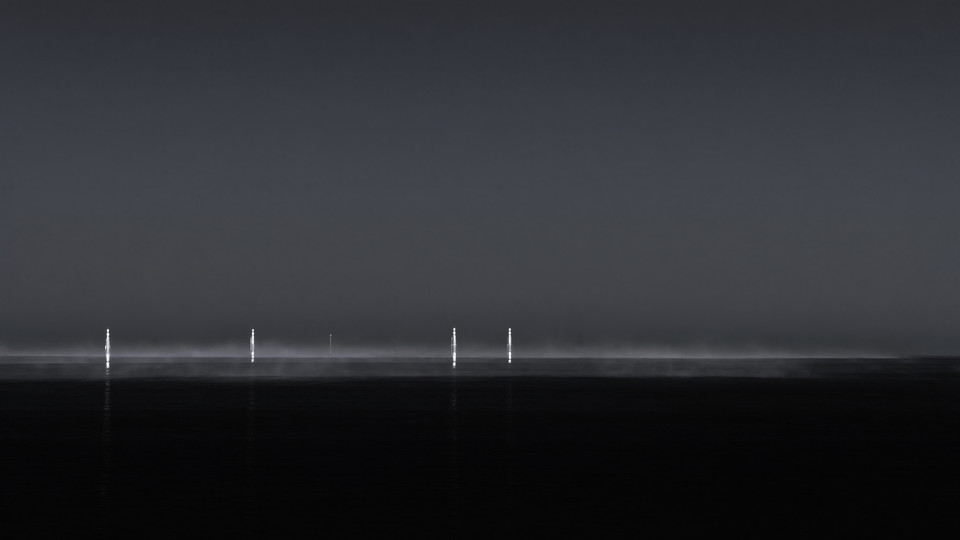
- Must: ocean
- Must: night
- Maybe: fog
- Maybe: silver
- Must: quiet
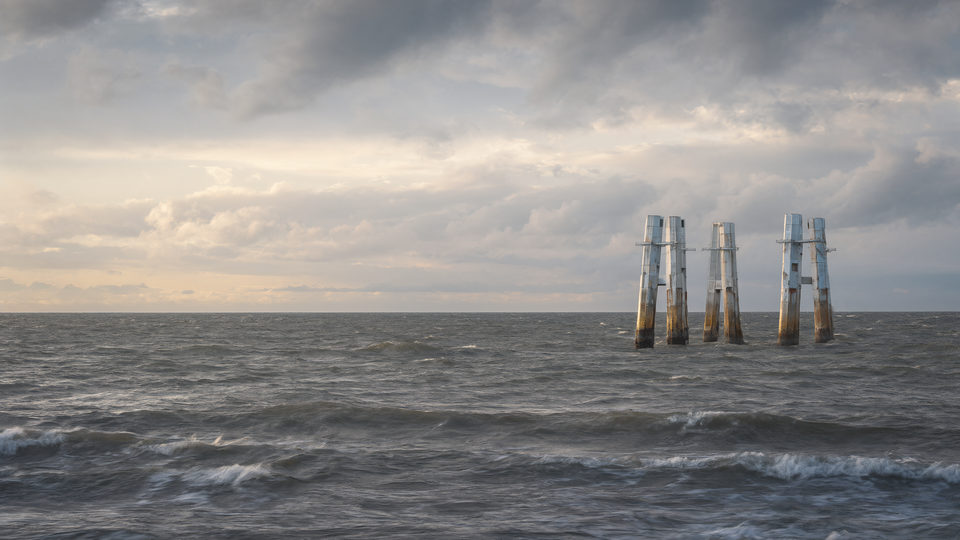
“Black ocean, silver structures” is the example from the post that started AutoPaper; see where the idea came from.
History
Every wallpaper stays in History, newest first, with its title and date, and whether you liked it or it’s an echo. Show only the ones you liked, disliked or echoed, or one mood’s. Any of them can go back on your desktop, be liked or disliked, have an echo made, lead to its original and its echoes, or be found as a file.
What made each one
On a Mac, History is a grid or a gallery: the wallpaper large, a filmstrip, and everything about it. Its description, the mood and keywords it came from, and what wrote and painted it, at what size and estimated cost: Written by Gemini 3.5 Flash-Lite (Google Gemini) · Painted by Nano Banana 2 (Google Gemini) · 3840×2160 · about $0.04. Space opens Quick Look. Windows and Linux have the grid, without the gallery for now.
Learns what you like
Like or Dislike any wallpaper, from the app’s window, its menu or a notification, depending on your system. AutoPaper notes what each one was made of (the place and what’s in it, the palette, mood, style, light, weather and season) and keeps a tally. It leans towards what you’ve liked and away from what you haven’t. Older opinions count for less: each halves in weight after a year.
Taste is a hint, never a rule. Something you disliked can still turn up if your keywords call for it, and the more Surprise you allow, the less taste counts. Avoid is the rule: a keyword marked Avoid never appears.
Dislike can also replace the wallpaper straight away, within your budget. That’s on unless you turn it off.
What it costs
With OpenAI or Google, each wallpaper costs an estimated 3 to 15 cents with their default models, depending on the quality you choose and the size of your display, by their published prices in October 2026. Costlier models cost more. They bill you directly, on your own key; none of it goes to AutoPaper. With a local model it costs nothing beyond your own electricity.
You set a monthly budget ($5 unless you change it). AutoPaper estimates the cost of each wallpaper as it goes, shows the month’s spend in Settings (labelled as an estimate), and stops making new ones when the budget is used up.
When it can’t make a new one, because the budget is spent, you’re offline or the provider is down, it brings back a wallpaper you liked, which costs nothing. Or, if you prefer, it keeps the one you have.
Your keys, your choice
AutoPaper uses AI for two jobs: writing the scene, and painting it. Each job can use a different provider, and you can change either whenever you like.
Hosted, with your own key
- OpenAI writes and paints.
- Google Gemini writes and paints. Painting needs a key from a project with billing turned on, as Google’s image models have no free tier. Its images carry SynthID, Google’s invisible watermark.
Local, on your own computer or network
- Ollama, or LM Studio and other servers that work like OpenAI’s API, write.
- ComfyUI, or a server that works like OpenAI’s image API (LocalAI, stable-diffusion.cpp), paints.
- Nothing leaves your network. AutoPaper uses plain http only on your own computer or local network; anything further away needs https.
Local painting, ready to go
AutoPaper comes with a tested ComfyUI workflow for each of three open models: Z-Image Turbo (the default), Krea 2 Turbo and Qwen-Image 2.1. Each paints at the largest size its model supports (2048 pixels a side for the first two, up to 2752 for Qwen-Image 2.1, never more than your display), and AutoPaper scales it to fit each display. Only the models your ComfyUI has installed are offered. You can also use a workflow of your own, exported from ComfyUI.
New to local models? On a Mac, Settings opens Brew Browser at the bundle that installs them: Local LLMs sets up Ollama, and Image Generation sets up ComfyUI. On Linux it does the same for Ollama, and links ComfyUI’s own install guide; on Windows, it links Ollama’s and ComfyUI Desktop’s own installers. The models themselves are separate downloads.
Keys are kept in your system’s own secure store: the Keychain on macOS, Credential Manager on Windows, and the Secret Service (your desktop’s keyring) on Linux. AutoPaper never writes them anywhere else, never logs them, and never shows them in an error message.
Problems point to the fix
When something needs you, AutoPaper says so once, in plain words, as a link to where it’s fixed. A missing key is Add your OpenAI key, which opens Settings with that key’s field ready to type in; a painting ComfyUI couldn’t finish is Check ComfyUI in Settings. Buttons that can’t work until it’s fixed wait, and the window updates itself once it is.
Keyboard shortcuts
New Wallpaper Now is ⌘ R in the Mac’s Now view and Ctrl R on Linux; a new mood is ⌘ N or Ctrl N. Moods and keywords reorder from the keyboard, and History moves with the arrow keys. Every shortcut, per system, is on the Keyboard shortcuts page.
Native on every desktop
Three apps, not one app squeezed onto three systems. Each follows its own platform’s design guidelines (Apple’s Human Interface Guidelines, Microsoft’s Fluent Design for Windows 11, and the GNOME Human Interface Guidelines) and uses the system’s own controls. The thinking (composing, memory, echoes, taste, moods, the budget) lives in one shared core, written in Rust, so it behaves the same everywhere.
| Part of the app | macOS | Windows 11 | Linux (GNOME; KDE works too) |
|---|---|---|---|
| Always there | A menu in the menu bar | An icon in the notification area, with a menu | Runs in the background, with notifications; a tray icon on KDE and other desktops |
| Main window | Now, Moods and History, in a sidebar | Now, Moods and History, in a navigation pane | Now, Moods and History, in an Adwaita window |
| Moods | List and detail, and the Your Moods summary | List and detail | List and detail |
| Keywords | Must, Maybe or Avoid in a segmented control | The same, as radio buttons | The same, in a toggle group |
| History | Grid or gallery, with Quick Look | Grid | Grid |
| Like and Dislike | Menu, window, notifications (if you turn them on) and Shortcuts | Window, notification-area menu, and buttons on the notification | Window, and actions on the notification |
| Settings | A Settings window with panes: General, Providers, Accounts, Memory, Budget, About | A Settings page | A preferences dialog |
| Keys | Keychain | Credential Manager | Secret Service |
| Wallpaper | Over your own on every display, or as it (then the lock screen follows) | Every monitor, and the lock screen; your own is put back | Through the wallpaper portal: one picture on every monitor |
| Starts at login | Login item, if you turn it on | Startup task, if you turn it on | Background portal, unless you turn it off |
| Updates | Sparkle, from this site’s update feed | App Installer, or winget | Flatpak, from AutoPaper’s own repository |
| Needs | macOS 26 or later, Apple silicon or Intel | Windows 11, x64 or Arm | Flatpak, on any distribution that has it; built from source, GTK 4.22 and libadwaita 1.9 or later (Ubuntu 26.04, Fedora 44) |
Accessibility
AutoPaper aims for WCAG 2.2 AA as W3C’s WCAG2ICT applies it to desktop software, and for each platform’s own accessibility guidelines. Each app has been checked in development builds through its system’s accessibility interface (the macOS accessibility API, UI Automation on Windows and AT-SPI on Linux), and what those checks found was fixed. Full passes with VoiceOver, Narrator and Orca are still to come; if something is hard to use, please open an issue.
What each app does:
- Every control and image has a spoken name. Each keyword says its weight (“rain, Must”), Surprise says its value, and the current mood says so (“Rainy beach, current mood”).
- Every wallpaper is described in words: its one-line description, plus the note for an echo.
- No meaning carried by colour alone: the current mood has a checkmark and the word, liked wallpapers a badge with the word.
- Little motion: wallpapers cross-fade, and the effect while painting holds still when reduced motion is on. New wallpapers can be paused.
- Standard controls throughout, so the system’s settings for contrast and transparency apply.
This website aims for WCAG 2.2 AA directly.
Privacy, in brief
- No account, no telemetry, no analytics, and no AutoPaper server. AutoPaper itself talks only to the providers you set up (and, on a Mac, to the update feed if you allow it).
- To write a scene, the provider gets the current mood’s keywords and Surprise, short descriptions of your 20 most recent wallpapers, from all your moods (so it doesn’t repeat them), a few things you’ve liked or disliked, your language (so titles and descriptions come back in it), and whether your computer is in light or dark mode (while Match my appearance is on). To paint it, the image provider gets the finished prompt, the size and the quality. Each request also names AutoPaper’s version and your system’s, and carries your IP address, as any request online does.
- Requests to OpenAI are sent with
store: false, so they aren’t kept as stored conversations; Google’s API keeps no conversation to begin with. Each provider’s own data policy still applies. - A free Gemini key comes with Google’s unpaid terms: what you send may be used to improve Google’s products and read by human reviewers. A paid project doesn’t, and in the EEA, Switzerland and the UK the paid terms apply either way. AutoPaper’s Settings say so.
- Your images, history, ratings, timings, spending and settings stay on your computer; what a hosted writer needs to write a scene is listed above. With local models, nothing leaves your network at all.
The whole account: who learns what, and every request, host by host.
Later: Atmosphere
Today AutoPaper already paints wallpapers that suit your light or dark mode (Match my appearance, on by default). After the first version, it is meant to set more than the picture: an accent colour, switching your computer’s own light or dark mode, and sounds to go with each wallpaper, wherever each system allows it. That’s planned for version 2. The first version is the wallpaper, the lock screen, moods, memory and echoes.
More examples
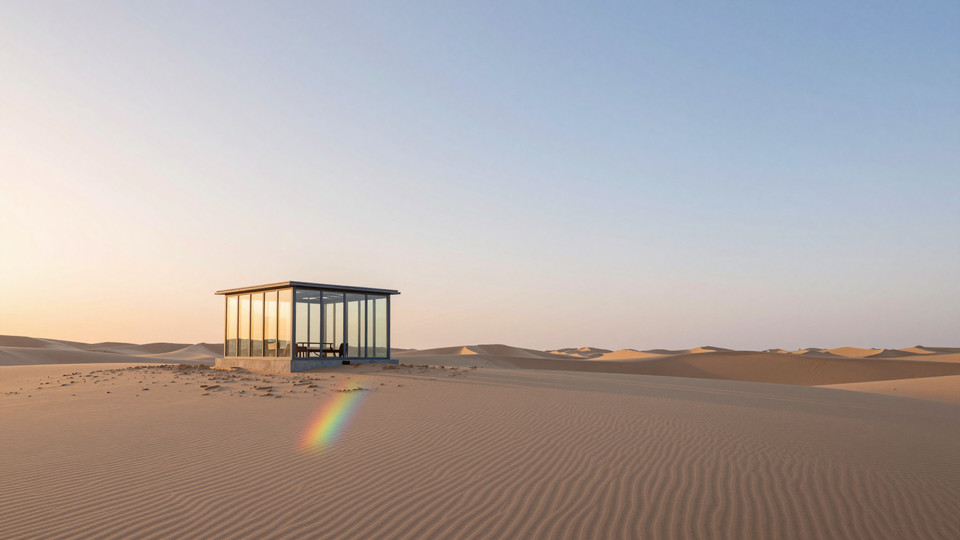
- Must: desert
- Must: dawn
- Maybe: glass
- Must: calm
- Avoid: people
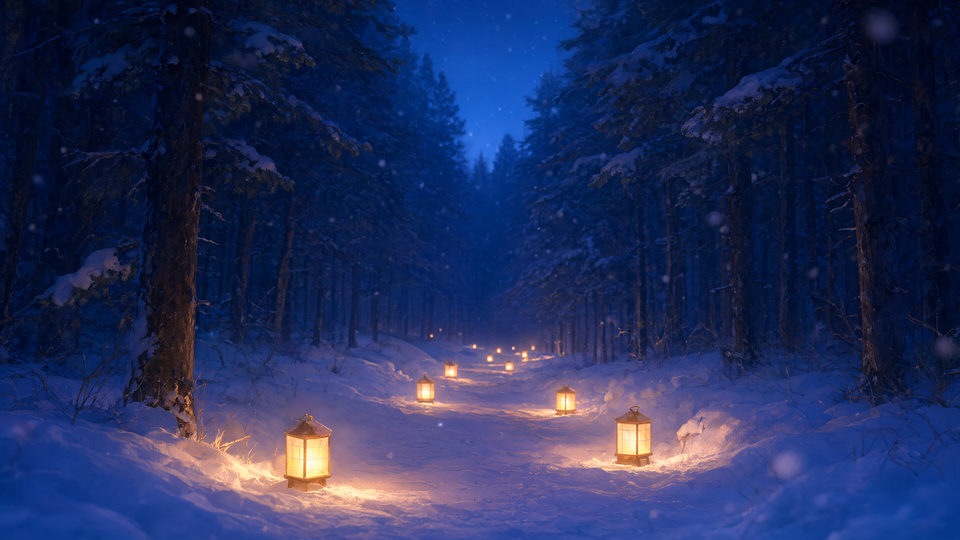
- Must: forest
- Must: snow
- Maybe: lanterns
- Maybe: warm
- Avoid: neon
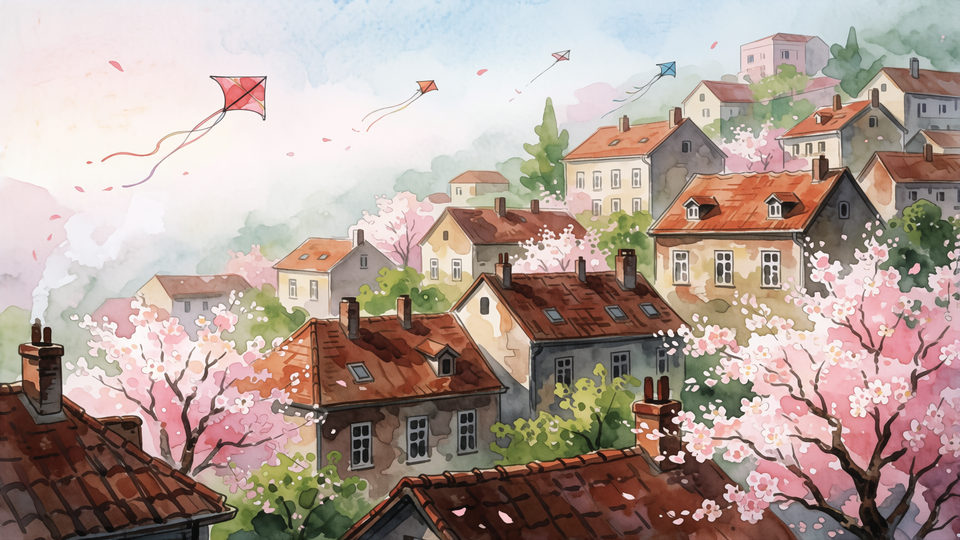
- Must: rooftops
- Must: spring
- Maybe: mist
- Maybe: city
About these images. Every wallpaper on this page is an example made before AutoPaper’s apps could make their own. Each was composed the way AutoPaper composes (keywords, then a concept with a title and a one-line description, then a prompt) and painted locally with ComfyUI by Qwen-Image 2.1, Z-Image Turbo or Krea 2 Turbo, whichever did that scene best. What the app makes will depend on the provider and model you choose. The Credits page has the details and the prompt for each.
Where the idea came from
From a Reddit post titled “Desktop Wallpaper Agent”. Its author described the idea, and said they wouldn’t be building it themselves. AutoPaper is an attempt to. The line at the top of this page, “Tell your computer what you’d like to see”, is the post’s own, and so is the black ocean with silver structures.
Who’s making it
Michael Sitarzewski, who also made AudioPaper, working with an AI coding assistant, Claude. The source code is MIT-licensed.
If you’d like a desktop that keeps changing without your writing a single prompt, that’s what AutoPaper is for. It’s free, on macOS, Windows and Linux. If you’d rather your desktop stay put, that’s a fine answer too.